Calendars, sharing and subscriptions
Besides your own calendar you can add more, share them, and pull in outside calendars by subscription or import. Everything lives under Settings → Calendar.
Add a calendar
Section titled “Add a calendar”- Open Settings → Calendar.
- Under Calendar Management, select Add calendar.
- Give it a name and a colour, then create it. It appears in the Calendars list in the Calendar view, where you can show or hide it.
Share a calendar
Section titled “Share a calendar”- Right-click the calendar in the Calendar sidebar and choose Share calendar, or use Share in Calendar Management.
- Sharing hands out a calendar URL that others can add or subscribe to; the copy icon next to the URL copies it.
Change a calendar’s colour
Section titled “Change a calendar’s colour”Right-click the calendar in the sidebar and choose Change colour (or use the colour swatch in Calendar Management).
Subscribe to an external calendar
Section titled “Subscribe to an external calendar”Select iCal Subscription, give it a title and the calendar’s URL
(https://… or webcal://…), pick a colour, and save. A subscription is
read-only and refreshes on its own; use the refresh action to pull the
latest now. Edit or remove it from the same list.
Import a calendar (.ics)
Section titled “Import a calendar (.ics)”Select Import Calendar and either upload a file (.ics) or give a
URL. VNCmail previews what it found before creating the events, and
deduplicates on the event UID so a re-import does not double up.
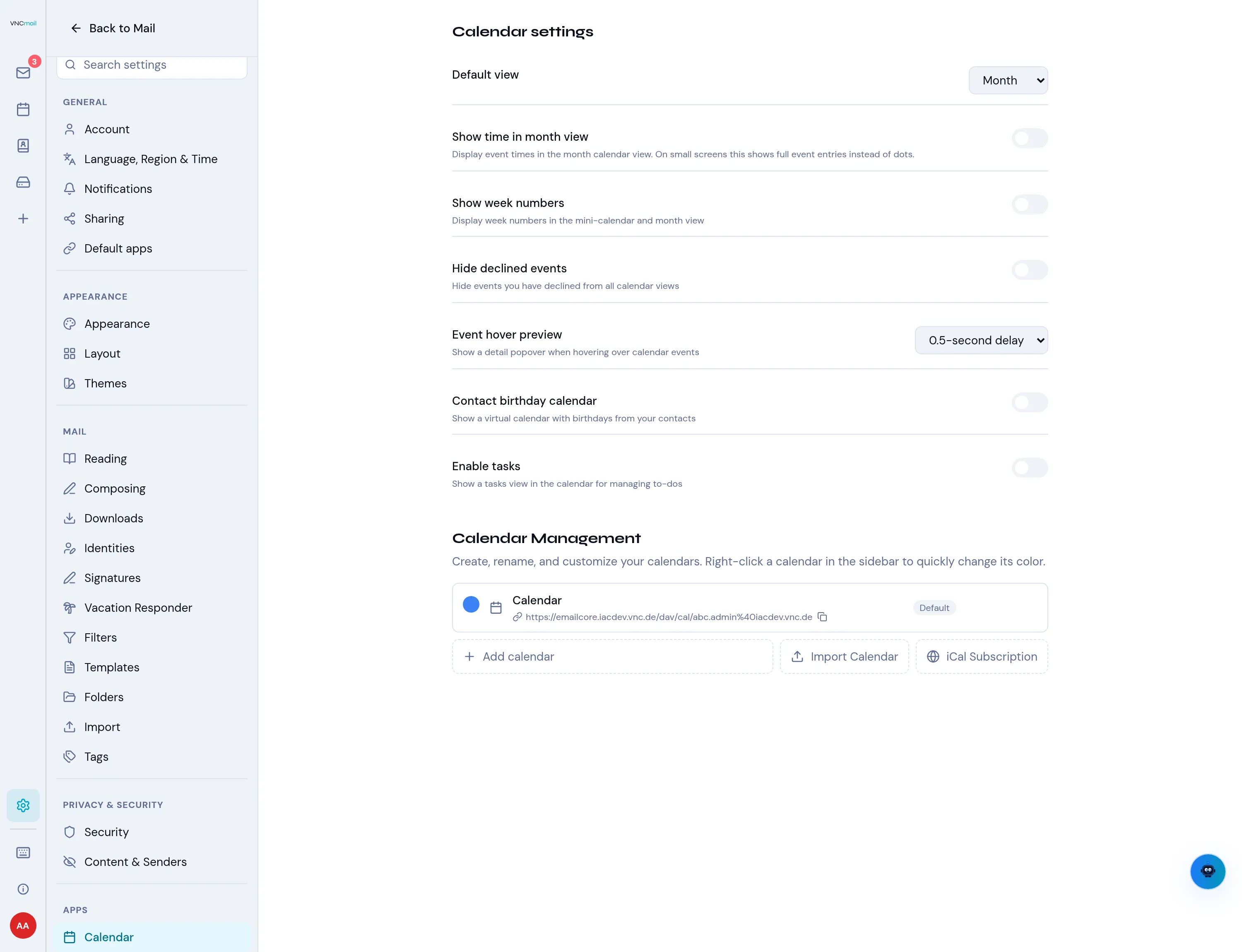
A few calendar settings
Section titled “A few calendar settings”- Contact birthday calendar — show a virtual calendar built from the birthdays in VNCcontacts.
- Enable tasks — add a Tasks view to the calendar toolbar for managing to-dos (due date, priority, completion) next to your events.
- Default view, Show week numbers, Show time in month view, Hide declined events and Event hover preview tune how the calendar looks and behaves.