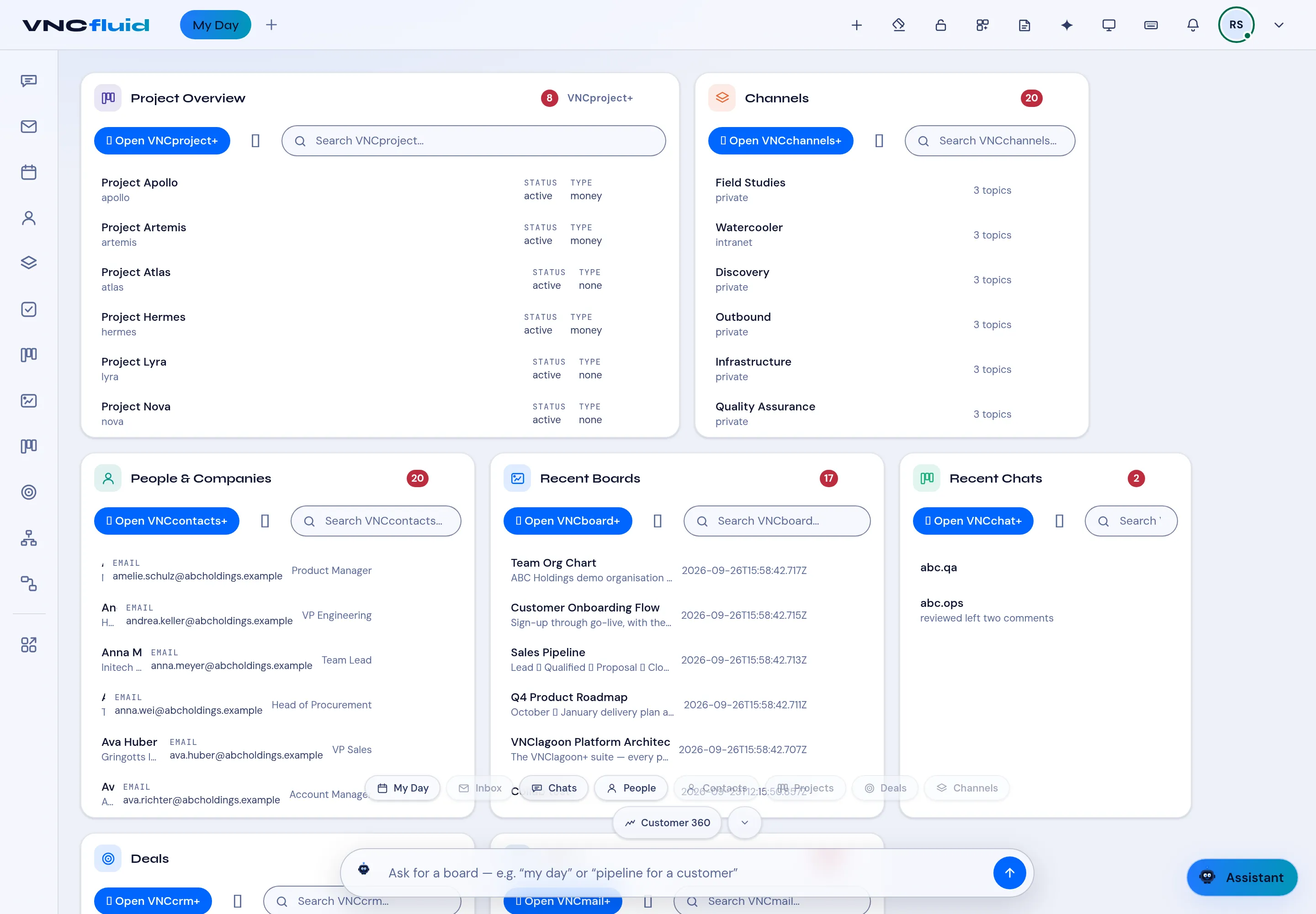
The composer (omnibar)
The composer (the omnibar) is the pill along the bottom of the board. It is the fastest way to reshape your board — either by asking for what you want in plain words, or by dropping a ready-made board with one chip.
Focus the composer
Section titled “Focus the composer”- Select the input, or press / anywhere (outside a text field) to jump to it.
Ask for a board
Section titled “Ask for a board”- Type a request — for example my day or pipeline for a customer.
- Send it (Compose board). While it works, the composer shows Composing your board….
- The board is filled to match. Portlets already on the board are left alone, so asking twice does not duplicate cards.
Speak instead of typing (desktop app)
Section titled “Speak instead of typing (desktop app)”In the desktop app, the composer also takes your voice when the cell offers a voice service:
- Select the microphone, or press Cmd+Shift+M (Ctrl+Shift+M on Windows and Linux), to start and stop dictation; push to talk is a shortcut you can set in the app’s settings.
- The transcript appears where your cursor is; it is never sent on its own — you still press send. Esc while the microphone is live discards the recording, and a recording stops itself after a minute.
- A listening badge shows while the microphone is open, so a recording you forgot is visible.
- An assistant answer can be read aloud from its own button; only one answer plays at a time and asking again stops it.
- An optional wake word (off by default) listens for hey Lago / hey Lagoon and puts what follows into the composer.
In a browser the composer tells you that voice needs the desktop app, and the microphone is hidden in a cell that has no voice service.
Template chips
Section titled “Template chips”Above the input sit template chips — My Day, Inbox, Chats, People, Contacts, Projects, Deals, Channels and Customer 360:
- A chip with a full set of portlets drops them straight onto the board (no waiting).
- A chip marked with the sparkle composes through the assistant.
- A chip whose portlets are all already on the board is marked Added and is disabled.
Use Show templates / Hide templates to collapse the chip bar; your choice is remembered.
The composer is also the assistant’s input — it reflects the assistant’s working state as it composes.