The left navigation
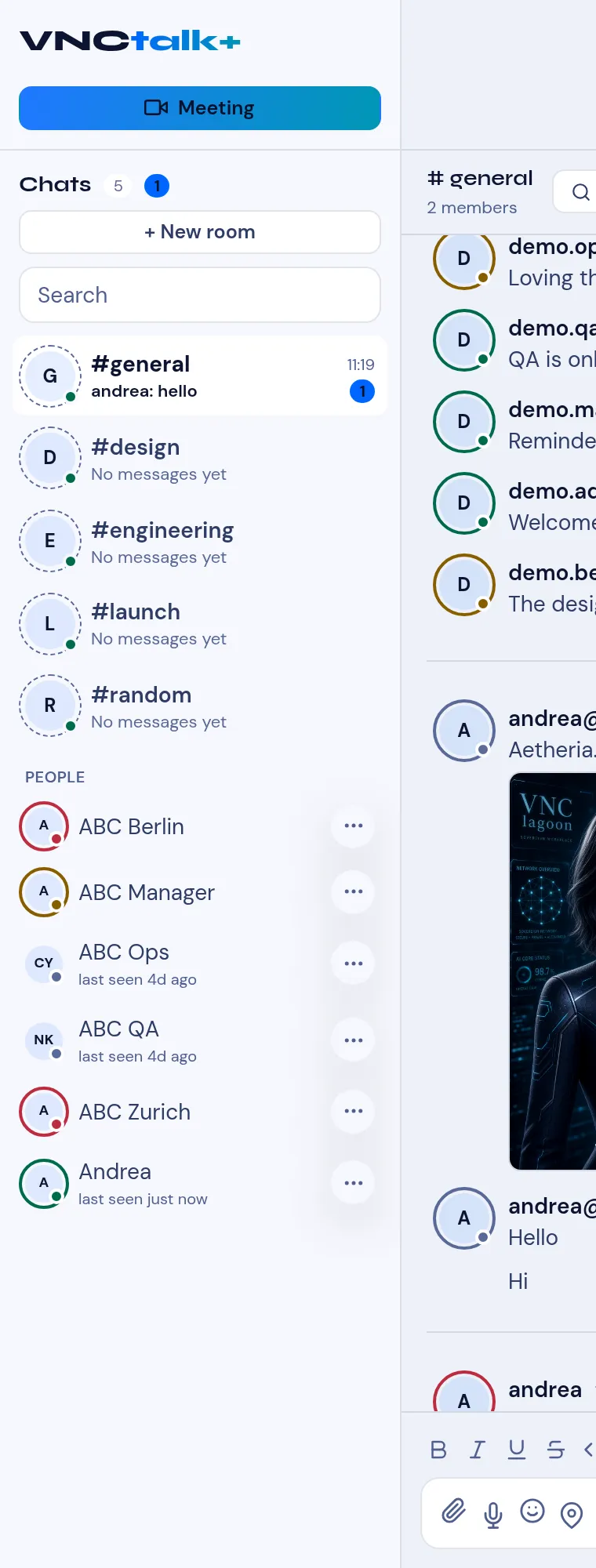
The VNCchat sidebar (left) is where you start a meeting, pick a room, search and reach people. The middle column is the conversation; the right column is the room or DM detail.
On a phone: the bottom bar
Section titled “On a phone: the bottom bar”In the desktop and web app on a wide screen the four destinations — Chats, Video, Audio and People — sit as a segmented control in the top bar. On a phone they move to a bottom tab bar: the same four destinations, each with its icon and label, with the top bar keeping the product name and the utility icons. The active destination is highlighted. This is the same set of views — only its position changes.
Meeting
Section titled “Meeting”Starts (or schedules) a video meeting in one click — the suite calls it Meeting. → Start or join a video meeting · Share your screen
The top section lists your rooms (public and private) with the latest message, a timestamp, and badges:
- A number badge — unread messages in the room.
- @1 — a mention of you in the room.
+ New room creates a room, and Search finds messages. → Create a room · Search your messages · Invite people to a room · Get around a room · Room settings
People
Section titled “People”The PEOPLE section lists the people you can message directly, with their presence and last seen. It is collapsible, and a person you already have a direct message with is marked as such. Open a person to start a direct message; the ⋯ menu holds the actions for that person (for example the Action Wheel). The search box reads Search chats & people and finds both. → Send a direct message · Use the Action Wheel