The left navigation
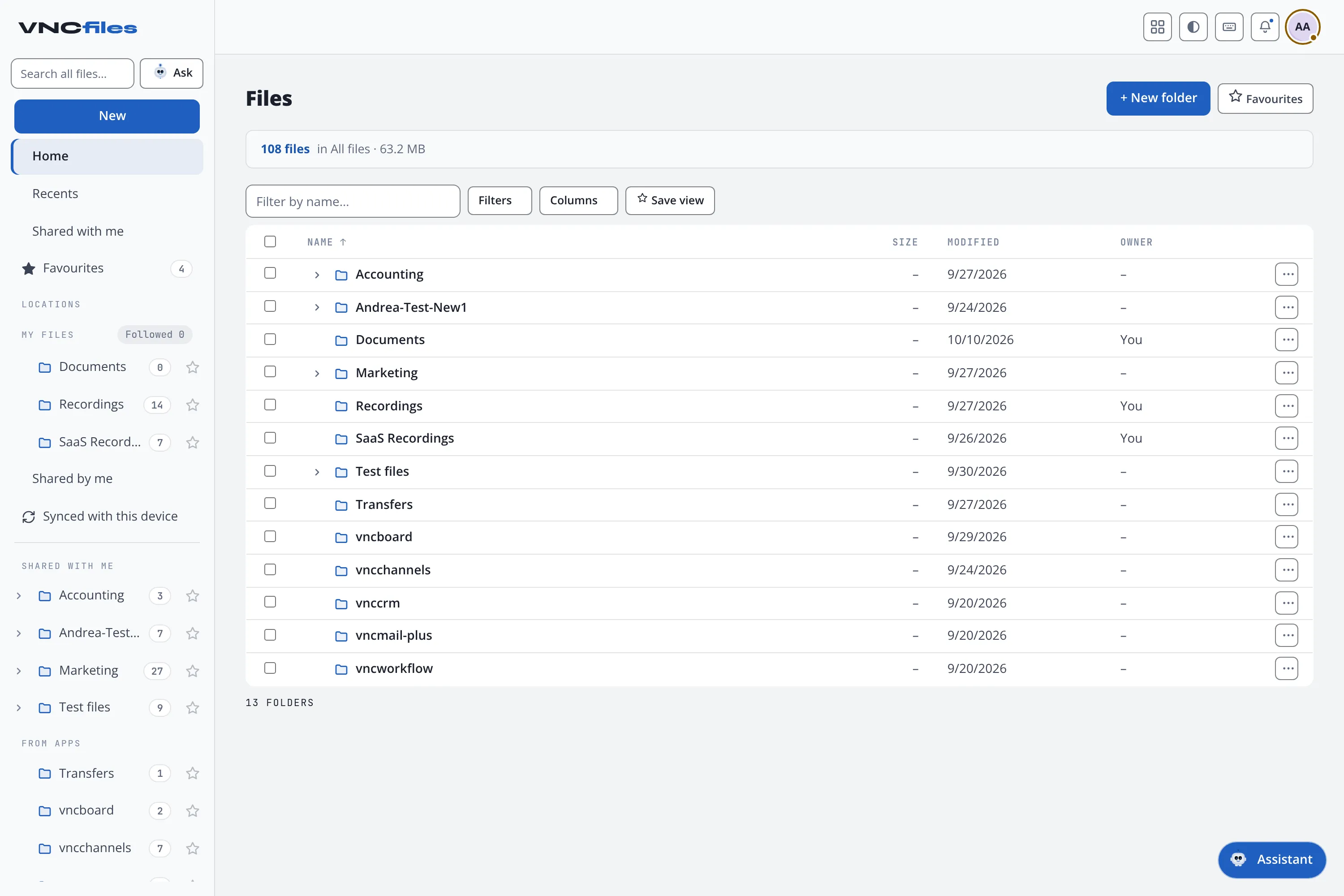
The VNCfiles sidebar is organized into a few clear parts: a New menu and the lenses at the top, the Locations that group your files by ownership, your Collections, and a management footer.
+ New is a menu with the ways to add an item:
- Upload - add files.
- New folder - create a folder.
- New collection - start a list.
- New items private - a toggle: new folders and uploads are created private (only you and admins) instead of corporate.
→ Create a folder · Upload a file
Lenses
Section titled “Lenses”Lenses are different views over the same files - they don’t move anything:
| Lens | Shows |
|---|---|
| Home | Your starting view. |
| Recents | Recently touched files. |
| Shared with me | Items others shared with you. |
| Favourites | Everything you starred (★). |
Locations
Section titled “Locations”Locations groups your files by ownership:
- My files - the folders you own. The Followed chip filters the tree to the folders you follow.
- Shared by me - items you have shared with others.
- Synced with this device - the files inside the folders you keep in sync.
- Shared with me - folders others shared with you (their own list).
- From apps - the folders the other products keep in your drive (Transfers, and one per product such as vncchannels, vnccrm, vncmail-plus, vncworkflow). These are app-owned: upload and new-folder are hidden and the header reads Managed by ….
→ Create a folder · Upload a file · Share a file or folder
Collections
Section titled “Collections”Collections are saved lists, independent of where a file lives. The + menu offers New list and Save current view. They start empty (No lists yet). See Views and file fields.
Footer
Section titled “Footer”The footer holds the management and account items:
- Trash - deleted files (restore, or delete forever).
- Devices & sync - the panel for sync problems, spaces and devices.
- Settings - preferences and sync.
- Audit log - for administrators.
The top and the search
Section titled “The top and the search”- The wordmark and a global search box sit at the top of the sidebar. The search is global across everything you can see; next to it is the Ask button for Ask your files.
- The topbar is a pure utility rail: the apps launcher, your notifications, and your account (avatar) menu - where Appearance and Help now live.
- The offline control lives under Devices & sync in the footer.