Offline and sync
Offline & sync covers local copies and the desktop client.
Connect a client
Section titled “Connect a client”Under Offline & sync (or on first run) set the Server address and select Connect to your server. If it fails you get Could not reach the server – check the URL is openable in a browser.
Keep files offline
Section titled “Keep files offline”Select Keep offline on a file or folder to cache it locally (it shows Offline · cached). Search cached items with Search offline….
Auto sync
Section titled “Auto sync”Under Offline & sync, the Auto sync toggle turns on background sync for this device (desktop only). While it’s on, VNCfiles flushes your offline edits and pulls changes from the server on a background heartbeat, whenever the window gains focus, and when the server pushes a change - so a change you made offline, or a change another device made, appears without a manual Sync now. With it off, edits still queue offline and replay the moment you reconnect.
Desktop app updates
Section titled “Desktop app updates”The desktop client checks the store for a new version shortly after it starts and then every few hours. It does not download anything behind your back: when a new build is available you get a dialog naming the version and the one you are on, with three choices:
- Download & install - fetches the build, then offers Restart now (or Later, which applies it when you next quit).
- Later - dismisses the prompt. You are asked once per version.
- Open download page - opens the store page so you can install it by hand, for example if the download fails.
If the app is not in front of you when a version appears, you also get an operating-system notification. To update on demand, use Help → Check for updates… or Help → Download latest version… in the menu bar.
Your files and sync spaces are unaffected by an update; the queue and local copies carry over.
Sync spaces
Section titled “Sync spaces”A folder made a sync space (see File actions) appears under Offline & sync; Stop syncing this folder removes it. An admin flags sync spaces per folder.
Conflicts
Section titled “Conflicts”If a file changes in two places, VNCfiles asks how to resolve it:
- Keep the server version (theirs), or
- Re-apply ours (ours), or
- Dismiss (✕) - clear the conflict without resolving it.
A version conflict (both sides edited the same row) offers the two-way choice above. A rejected edit - the server answered 401/403 (you signed out, or lost the right) or the replay gave up - shows a Retry button instead, so you re-run it once you’ve re-authenticated, rather than silently dropping the change.
Sync console
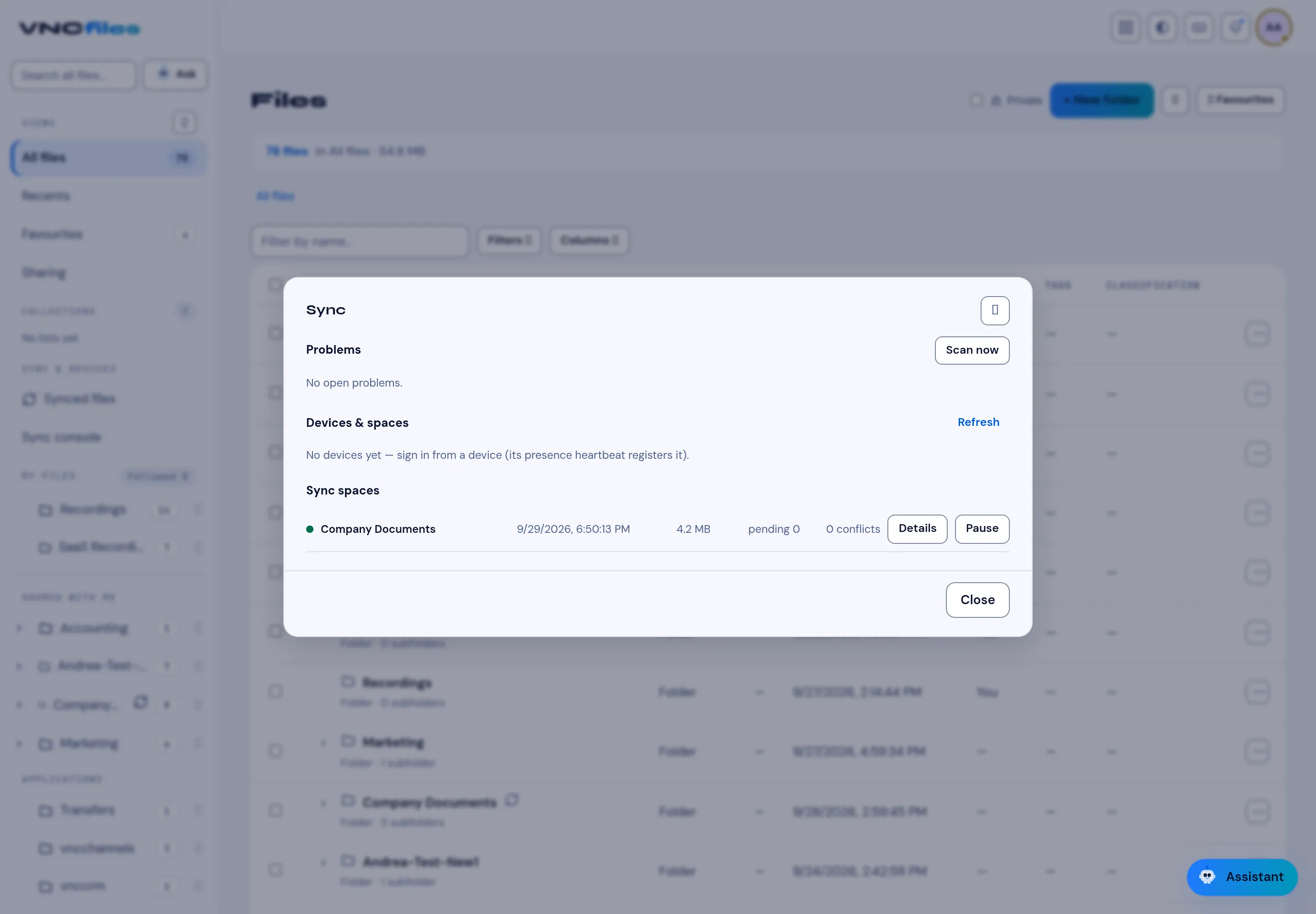
Section titled “Sync console”Sync console (under Sync & devices) is the live view of syncing:
- Problems - Scan now checks for stuck items; it reads No open problems when all is well.
- Devices & spaces - the devices signed in. A device appears once it signs in and sends its presence heartbeat; Refresh re-reads the list.
- Sync spaces - each space with its last sync, size, pending count and conflicts, with Details and Pause.
Per-device sync policy
Section titled “Per-device sync policy”For each device × space you can set a Sync policy:
- Sync over Wi-Fi only - don’t sync over mobile data.
- Upload limit and Download limit in kbps (blank = unlimited) - cap the bandwidth this device uses.
- Selective paths - sync only the named subfolders (one per line; blank = the whole space).
The server stores the policy for that grant and applies the caps to the device.