Guided org setup
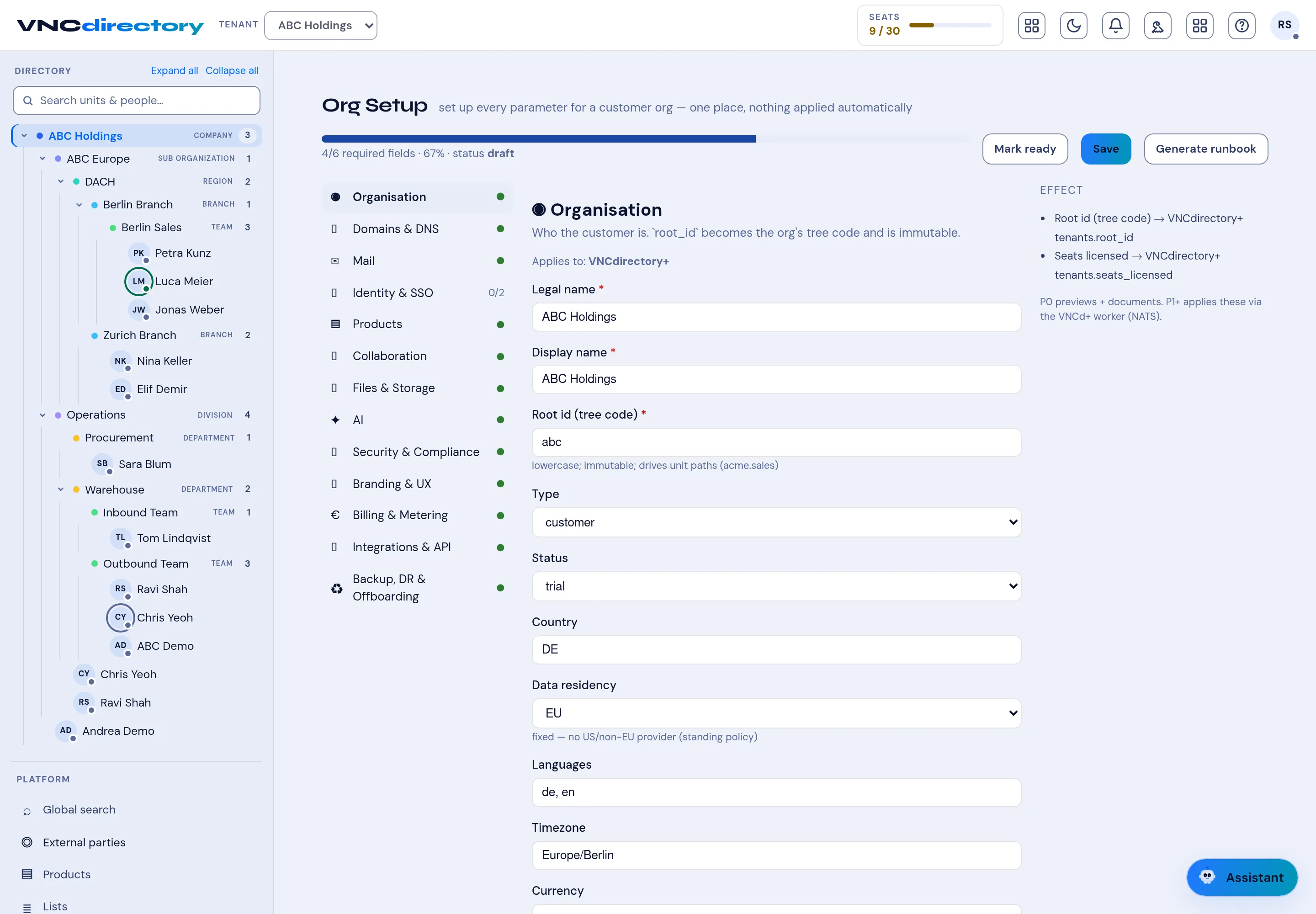
Org Setup models a customer’s organization in one place: the org itself, its unit tree, its people and roles, the products it is entitled to, and the defaults that every new record inherits. It has two views of the same profile — a linear Guided setup and the full Advanced chapters. Switch between them at any time; a change you make in one shows up in the other.
Before you start
Section titled “Before you start”- You are a tenant administrator of the organization you are setting up. A platform administrator can target another tenant with the tenant picker.
- Have the customer’s display name, legal name, and the chosen tree code
ready. The tree code (
root_id) becomes the organization’s permanent code and cannot be changed afterwards.
The guided five steps
Section titled “The guided five steps”Select Org Setup in the left navigation, then choose Guided setup.
1. Organisation & logo
Section titled “1. Organisation & logo”Set the Display name, the Legal name and the Root id (tree code).
Add a Company logo by uploading an image file or by pasting an image URL. The
logo is stored as the organization’s brand.logoRef and reappears wherever the
brand is shown.
2. Org template
Section titled “2. Org template”Pick the closest starting structure from the ten built-in org templates — each pre-fills the unit tree, the roles, the products and the access defaults so you are not starting from a blank page:
| Template | Suited to |
|---|---|
| IT & Software | Product engineering orgs, teams by function |
| Reseller / VAR | Sales-led channel orgs, CRM-centric |
| Consultancy | Client-delivery orgs, billable projects |
| Managed Service Provider | Service-desk orgs, accounts and tiers |
| Small Business | Flat, lean teams |
| Manufacturing | Plants, production and supply |
| Financial / Banking | Controlled access, compliance-first |
| Legal | Practice groups and client extranets |
| Creative / Agency | Studios, campaigns and clients |
| Healthcare | Clinics, care teams and sensitive data |
Choosing a template pre-fills but does not apply anything — you review and edit every value in the steps that follow.
Then, optionally, describe your org in one line and select Propose. The built-in assistant returns a starting draft (tree, roles, products, access) that you can inspect as JSON and accept with Apply to config. A proposal is a suggestion only — it is never applied on its own, and you always edit the result.
3. Users & roles
Section titled “3. Users & roles”Provide the first administrator (name and email). Then build the team with
the add-user rows: one row per colleague, each with a Name, an email,
a Unit (chosen from the tree you are building) and a Role (from the roles
template). Use + Add user for each person, Prefill rows from tree to seed
one row per unit, or expand Paste rows instead and paste one
name, email, unit, role line per person. The list is saved as the org profile’s
invite list.
Invited people receive a temporary credential and must change it and set up a second factor at first sign-in.
4. Products
Section titled “4. Products”Toggle the products the customer is entitled to. The selection is driven by the template and you can adjust it. VNCdirectory — the organization system of record — is always included and cannot be switched off.
5. Access defaults
Section titled “5. Access defaults”Choose the defaults every new record starts with:
- Visibility — the ladder is private ⊂ intranet ⊂ extranet ⊂ public; a record may never be more visible than the unit it belongs to.
- Data classification and whether external sharing is allowed.
Select Finish & save.
The Advanced view
Section titled “The Advanced view”Switch to Advanced to see the same profile as thirteen chapters — Organisation, Domains & DNS, Mail, Identity & SSO, Products, Collaboration, Files & Storage, AI, Security & Compliance, Branding & UX, Billing & Metering, Integrations & API, and Backup, DR & Offboarding. Each chapter shows a completeness mark and an Effect preview of what the chapter will do; a chapter flagged as high-impact needs approval before it is applied in production.
The org runbook
Section titled “The org runbook”Org Setup can generate a runbook (a Markdown document) that collects the parameters and the exact steps to stand the organization up — handy to hand to whoever operates the tenant.
Result
Section titled “Result”Your profile is saved to the tenant. Org Setup previews each chapter’s effect and documents the exact steps; applying them to a running organization is a separate, confirmed step — nothing is applied silently.